How to Use OneConnect™
OneConnect™ App User Manual
Some images in this manual may require zooming in to view all details.
Navigating the OneConnect™ App as an end-user
When not logged into the app as a nurse, doctor, or other end user in a facility, these are the key features you can access:
- Scan List
- System Status
- Help Content
- Remote Access (Receive Support)
Scan list
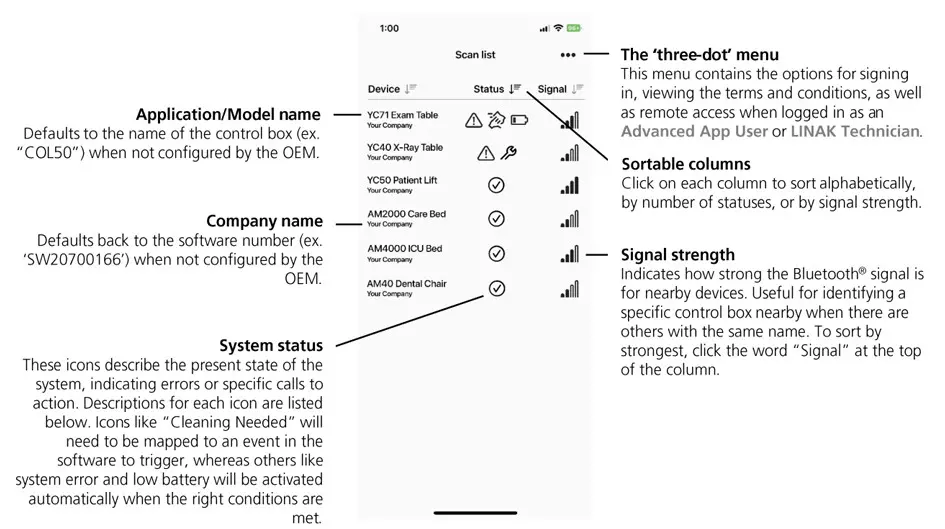
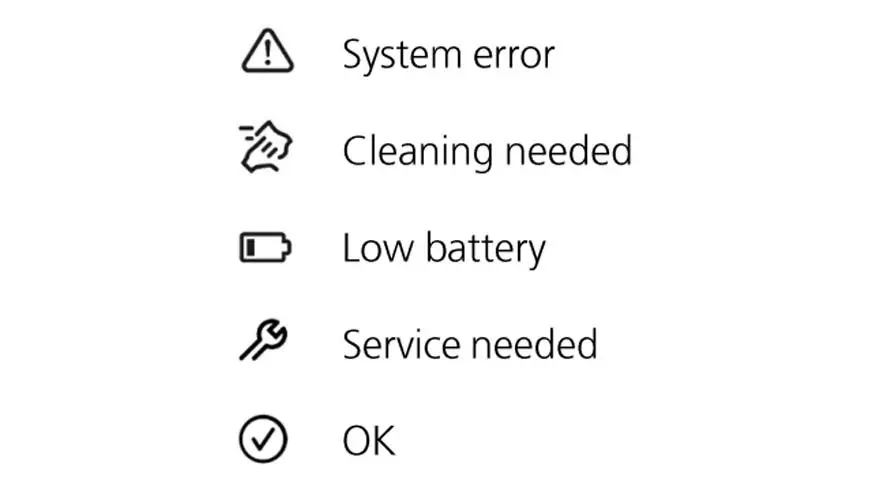
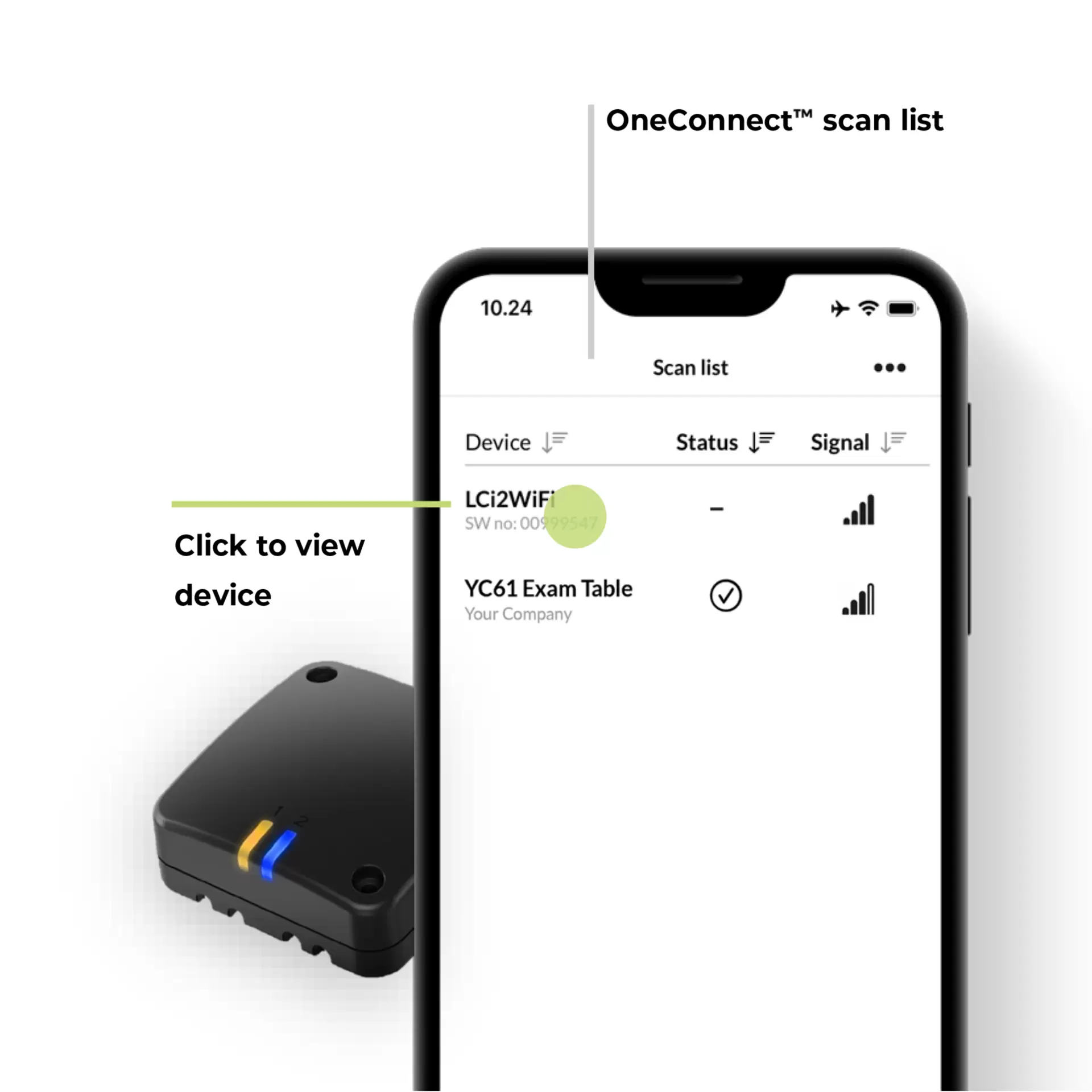
The scan list is a live view of all in-range devices that allows quick assessment of devices with system statuses that require attention. Clicking any device opens a system status screen with more options.
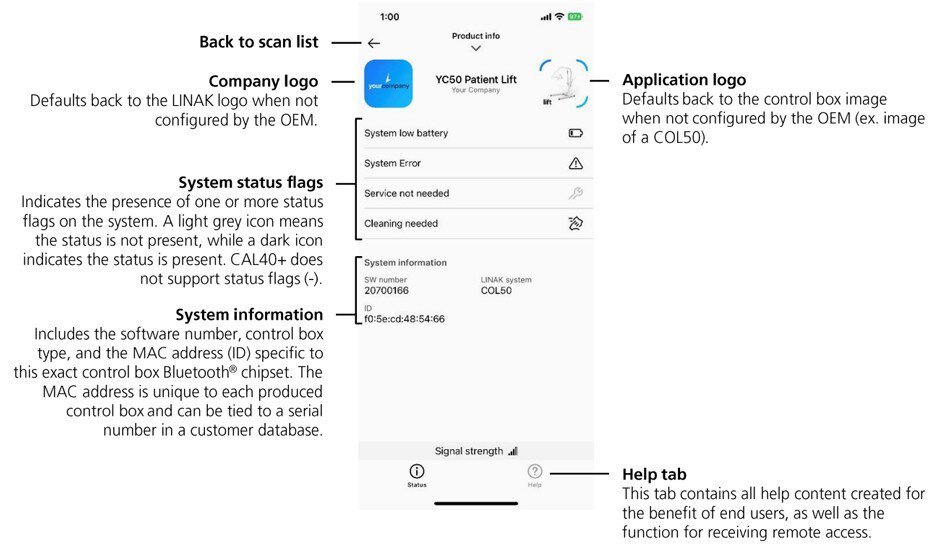
System status
Help content
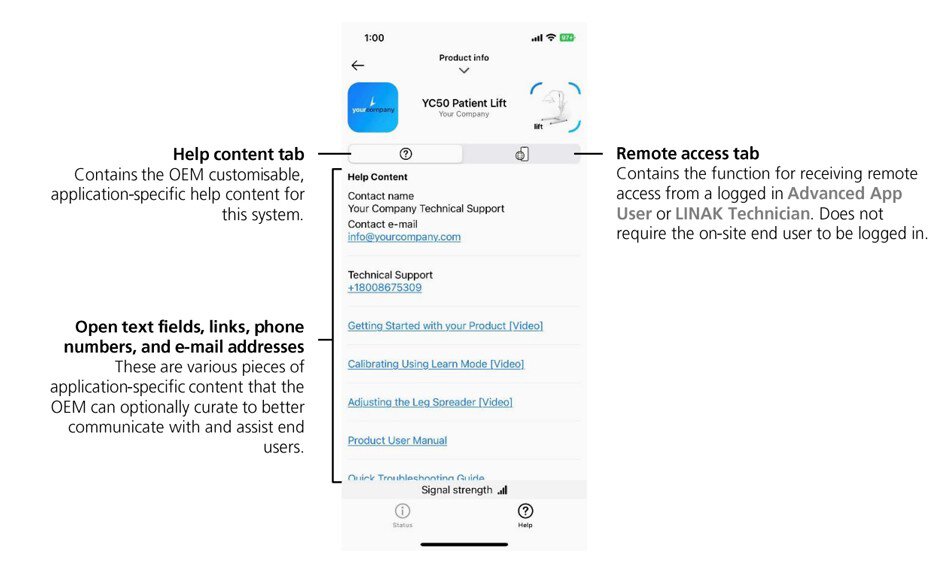
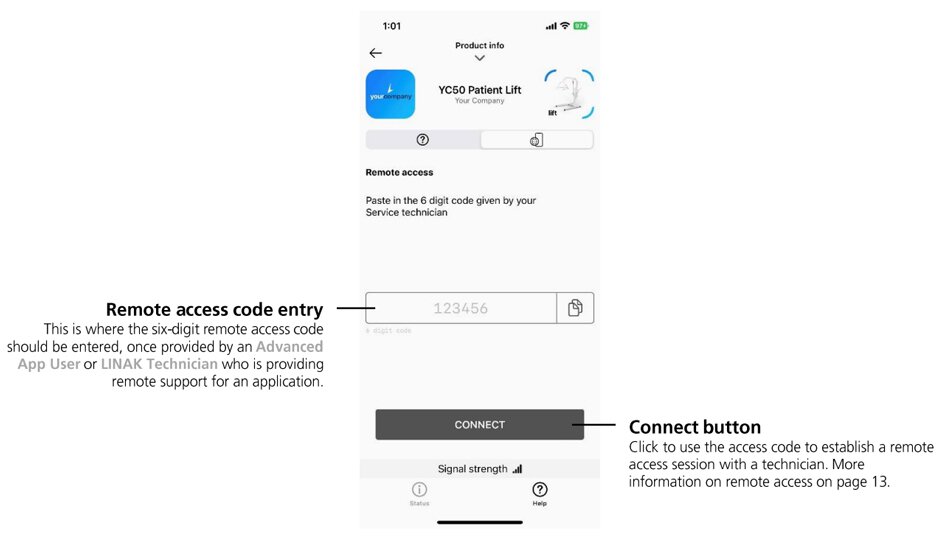
Remote access (receive support)
Allow a technician to access control box data through your device’s Bluetooth®.
Navigating the OneConnect™ App as a technician (advanced App user)
When logged into the app as an OEM’s Advanced App User, these are the additional key features you can access:
- Logging in
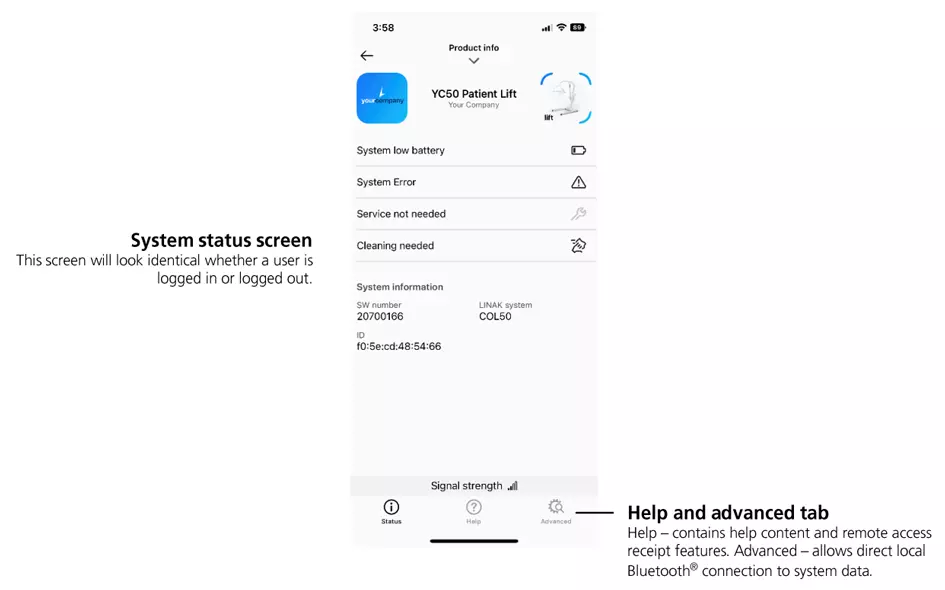
- System Status
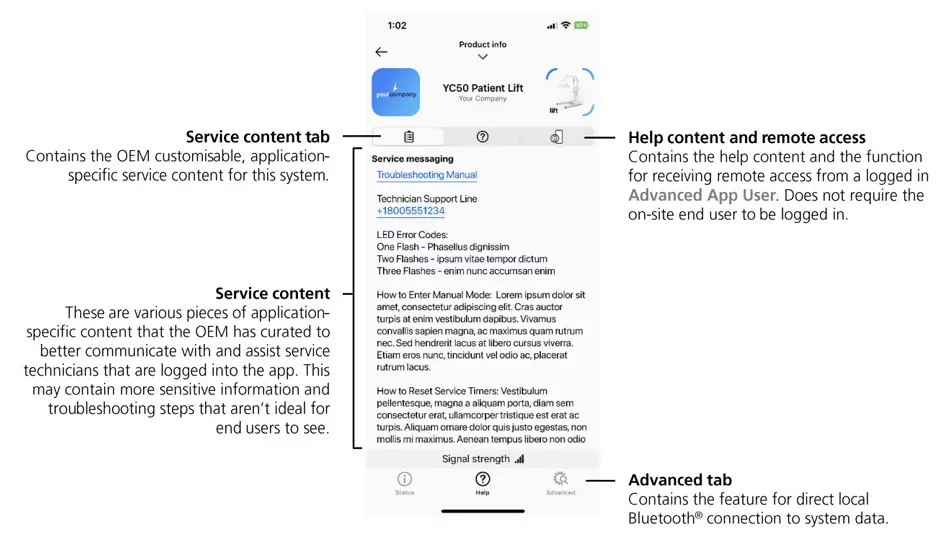
- Service Messaging (Service Content)
- Advanced (Local Bluetooth Connection)
- Control Box State
- Actuator Channels State
- System Statistics
- Command Monitor
- System Settings
- Remote Access (Provide Support)
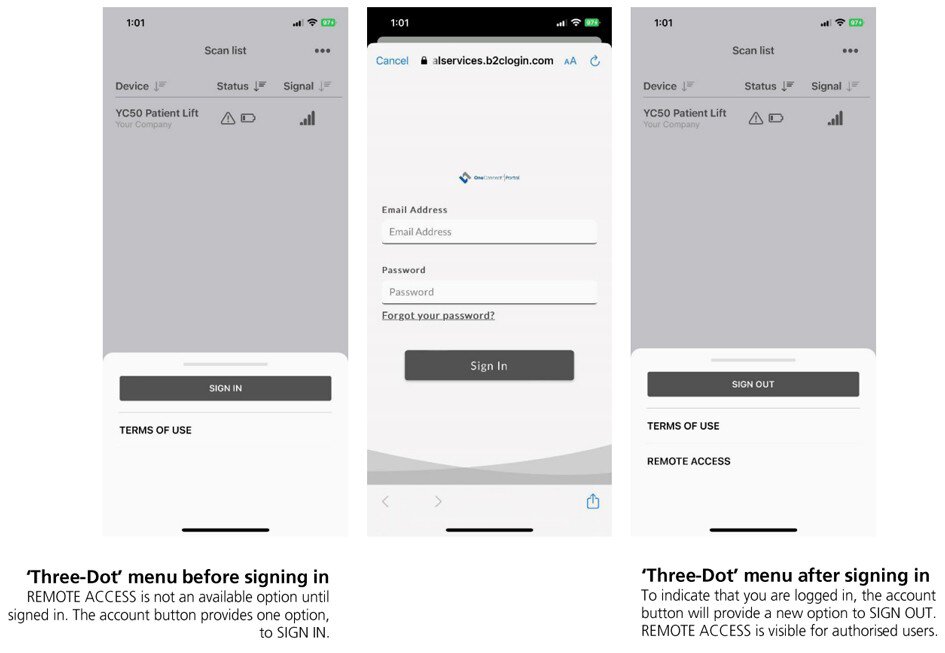
Logging in
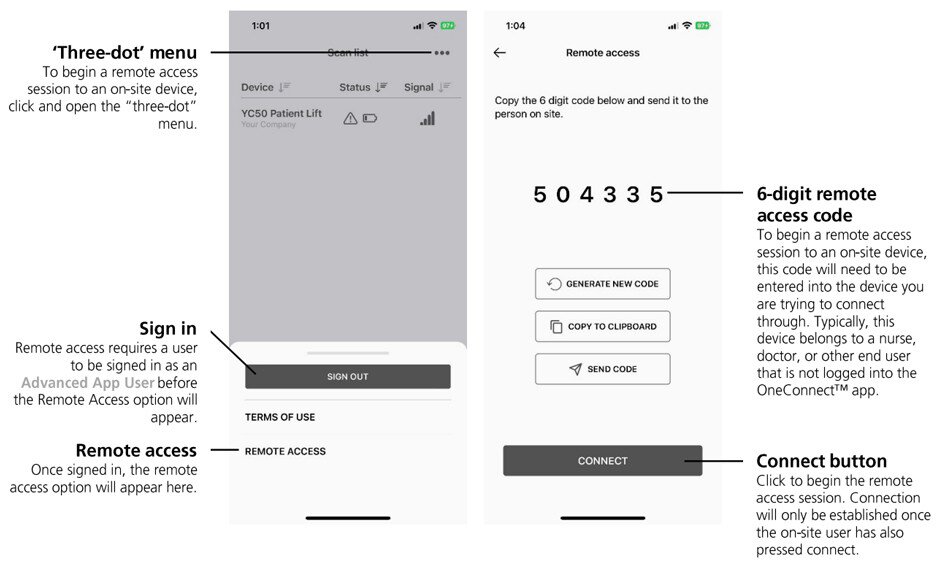
To log into the OneConnect app as an Advanced App User, click the “Three-Dot” menu from the scan list and select “SIGN IN”. OEM’s will need to request permission from the OEM administrator or OEM App user manager to create an account with the Advanced App user role.
System status
Service messaging (service content)
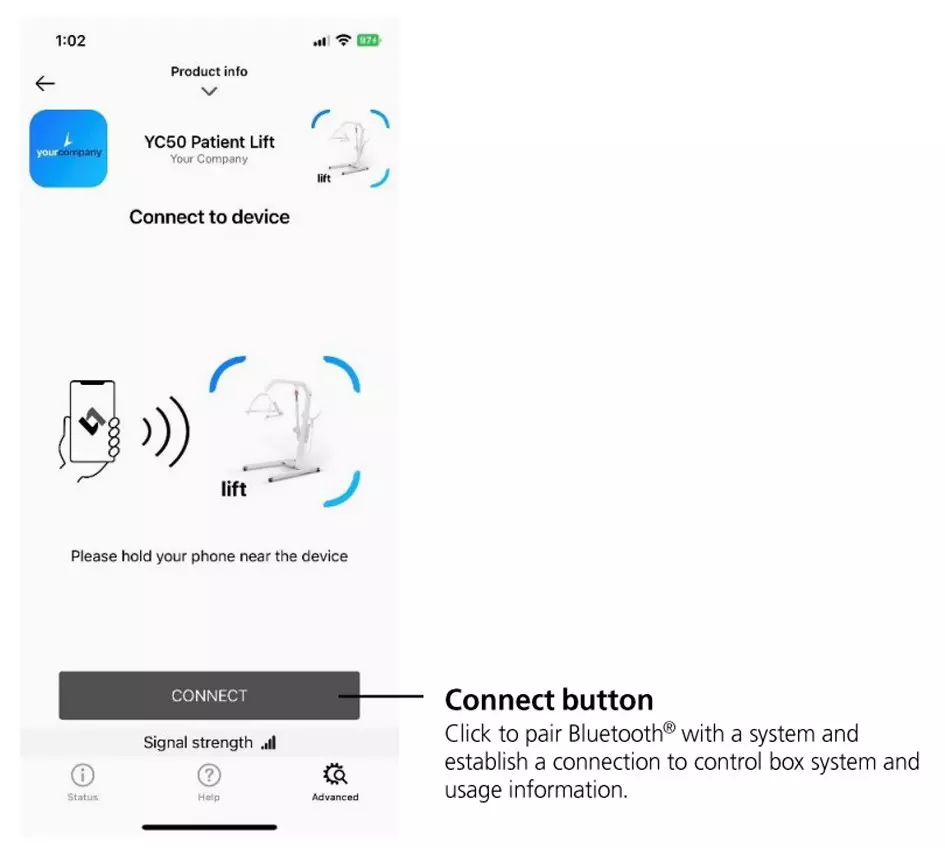
Advanced tab (local Bluetooth® connection)
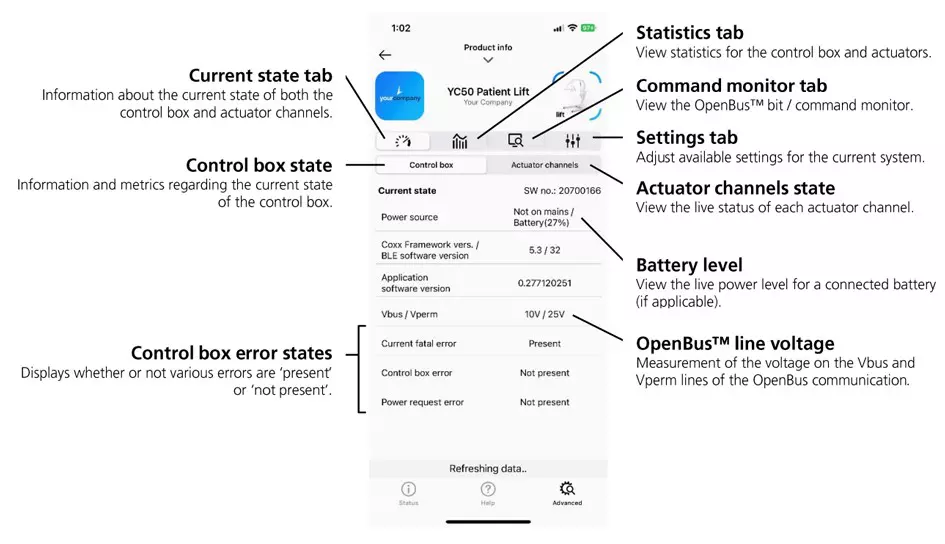
Control box state
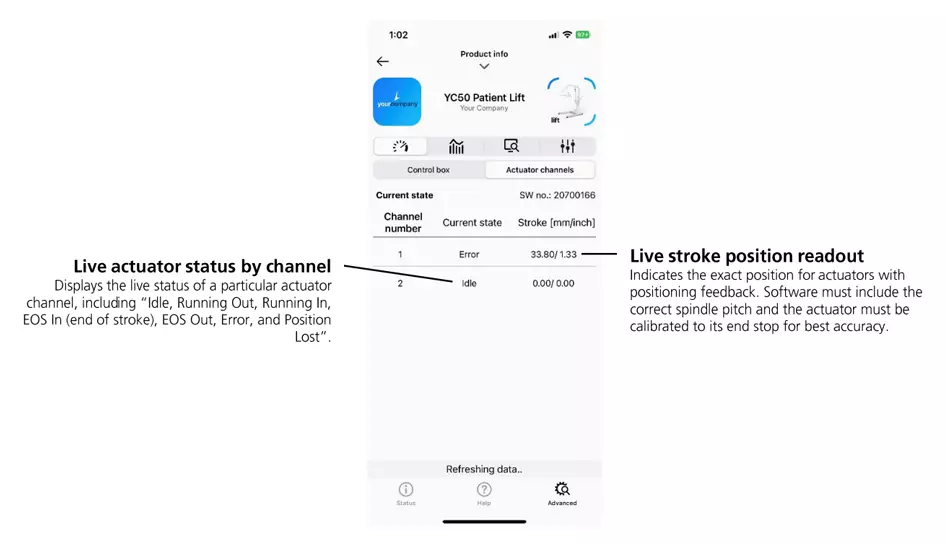
Actuator channels state
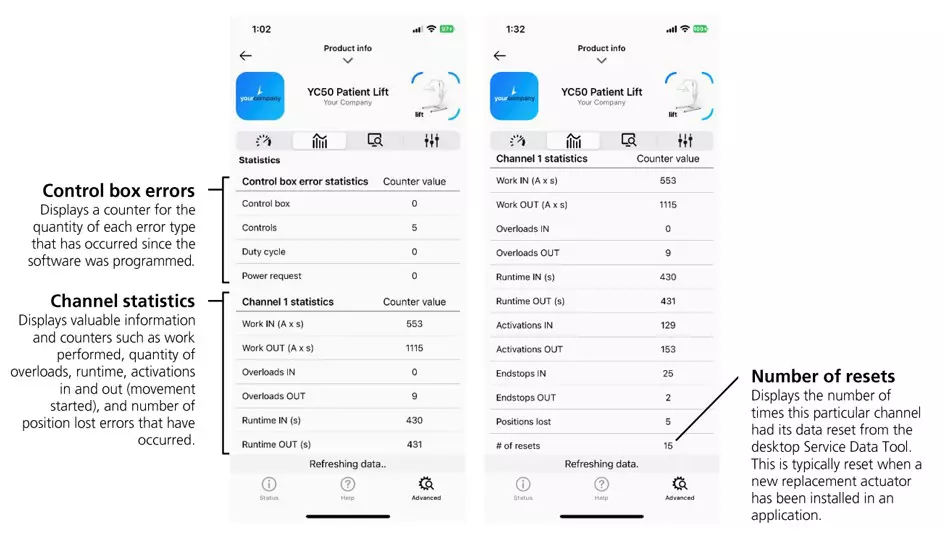
System statistics
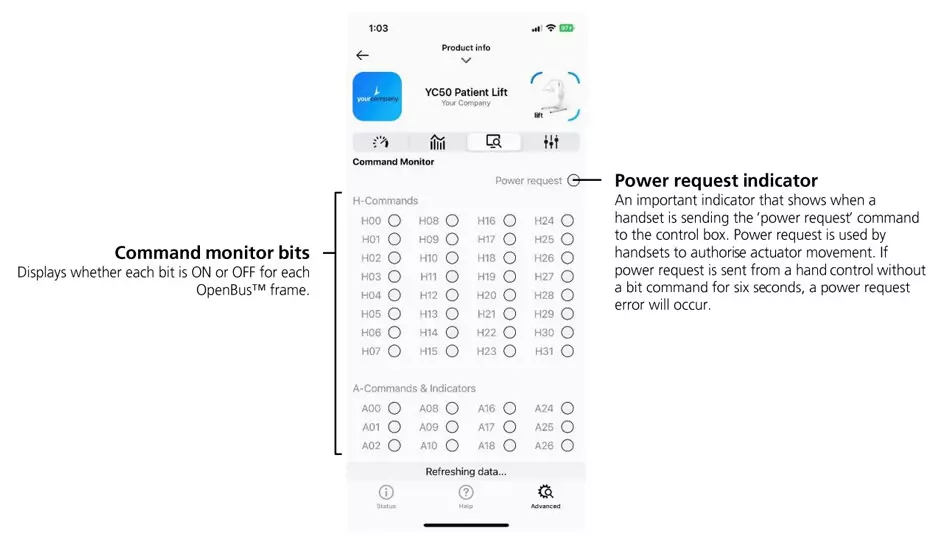
Command monitor
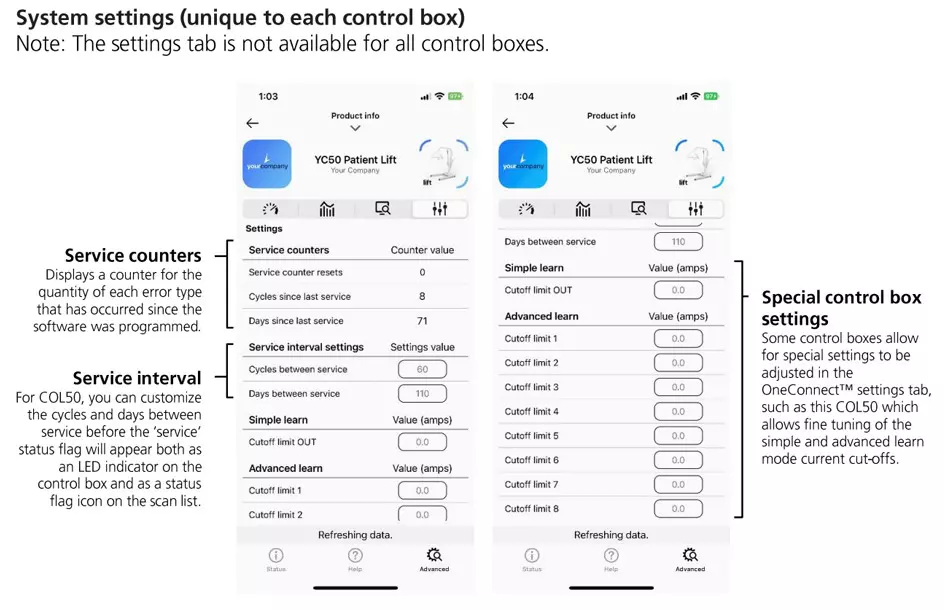
System settings (unique to each control box)
Note: The Settings tab is not available for all control boxes.
Remote access (provide support)
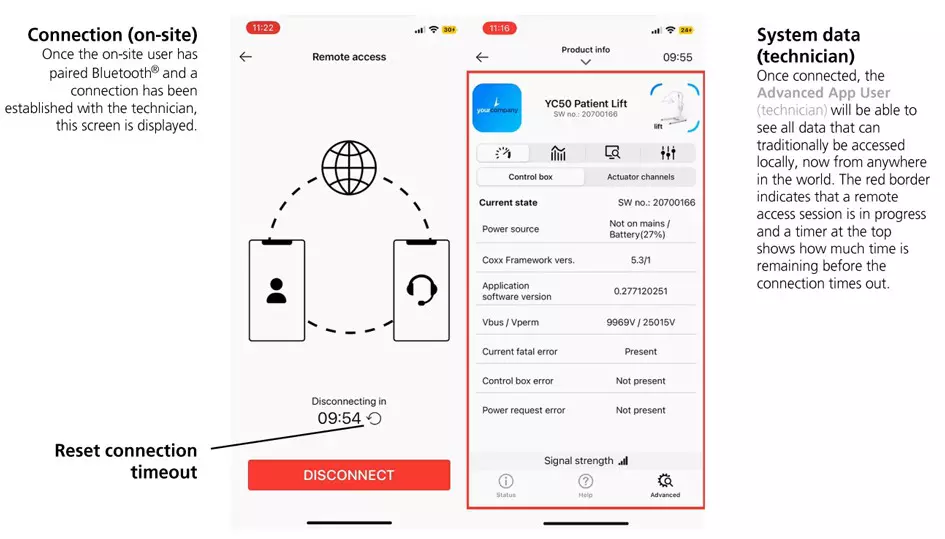
Connect remotely to an end user’s device to access control box data through their device’s Bluetooth. Once connected, a technician will be able to view the exact same data they could see on a local Bluetooth device, now from anywhere in the world, via an on-site end-user’s device.
- Ensure that both you and the on-site user have a stable internet connection and that the on-site user has Bluetooth turned ON.
- Sign into the app from the “Three-Dot” menu as an Advanced App User assigned to the same OEM as the control box. The on-site user does not need to be signed into the app.
- Click on REMOTE ACCESS from the “Three-Dot” menu.
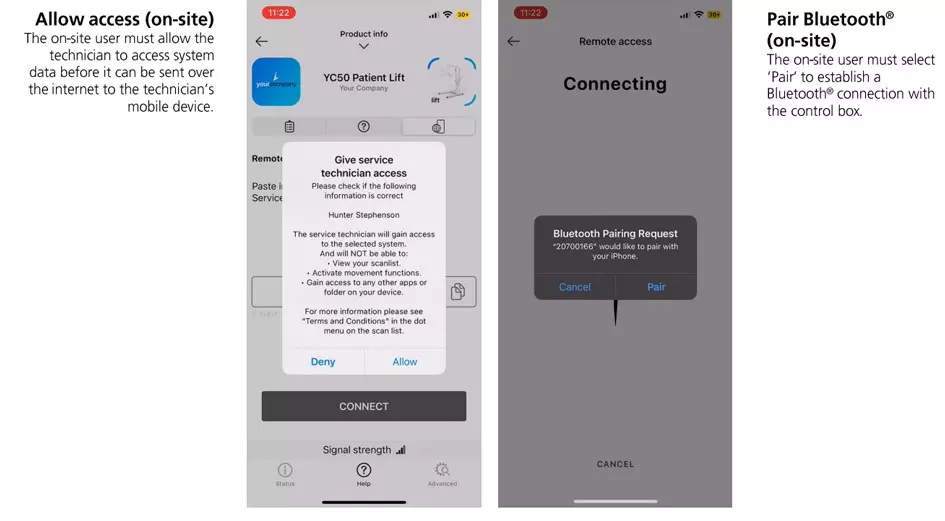
- Have the on-site user open the OneConnect, click on the desired device from the scan list, and navigate to the Remote Access page under the “Help” tab.
- Have the on-site user enter the 6-Digit Remote Access Code and press CONNECT.
- Press CONNECT on your device and notify the on-site user that they will need to accept your incoming connection and accept the Bluetooth pair request that appears on their screen. Note: Most Android users will be prompted to pair Bluetooth twice.
- Connection will be established, and the connection timeout countdown will begin at ten minutes to prevent permanent connections. The connection time can be extended by having the on-site user press the refresh icon next to the timer.
Pairing an LCi Gateway to Wi-Fi
Step one: Tap on “LCi2WiFi” from the scan list
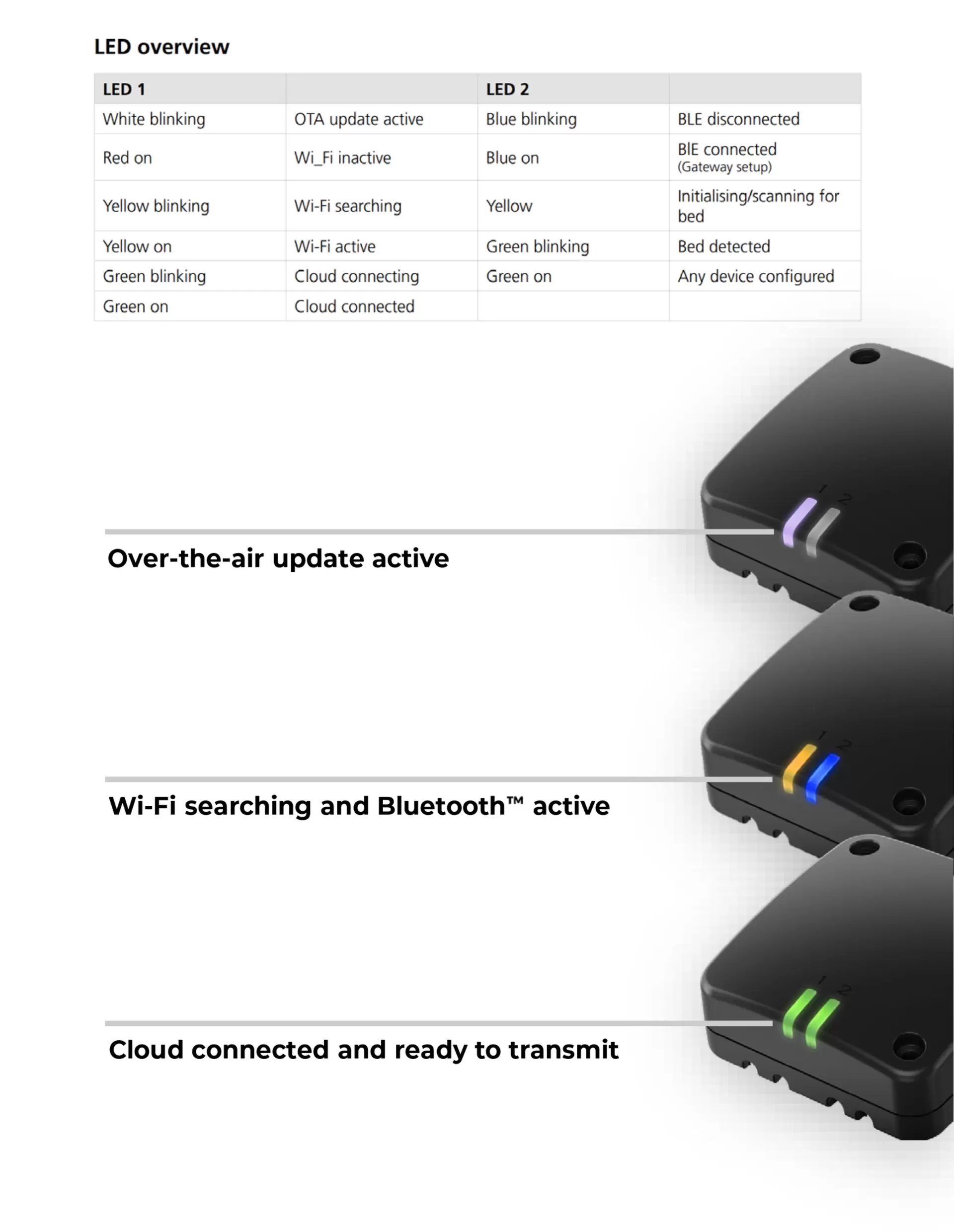
Begin by plugging in the gateway. The device is designed to allow Wi-Fi configuration for the first minute after power up (LED2 should be flashing blue). The OneConnect™ app always opens to the Scan List, showing a list of nearby LINAK devices and their status. To connect, select “LCi2WiFi” from the list.
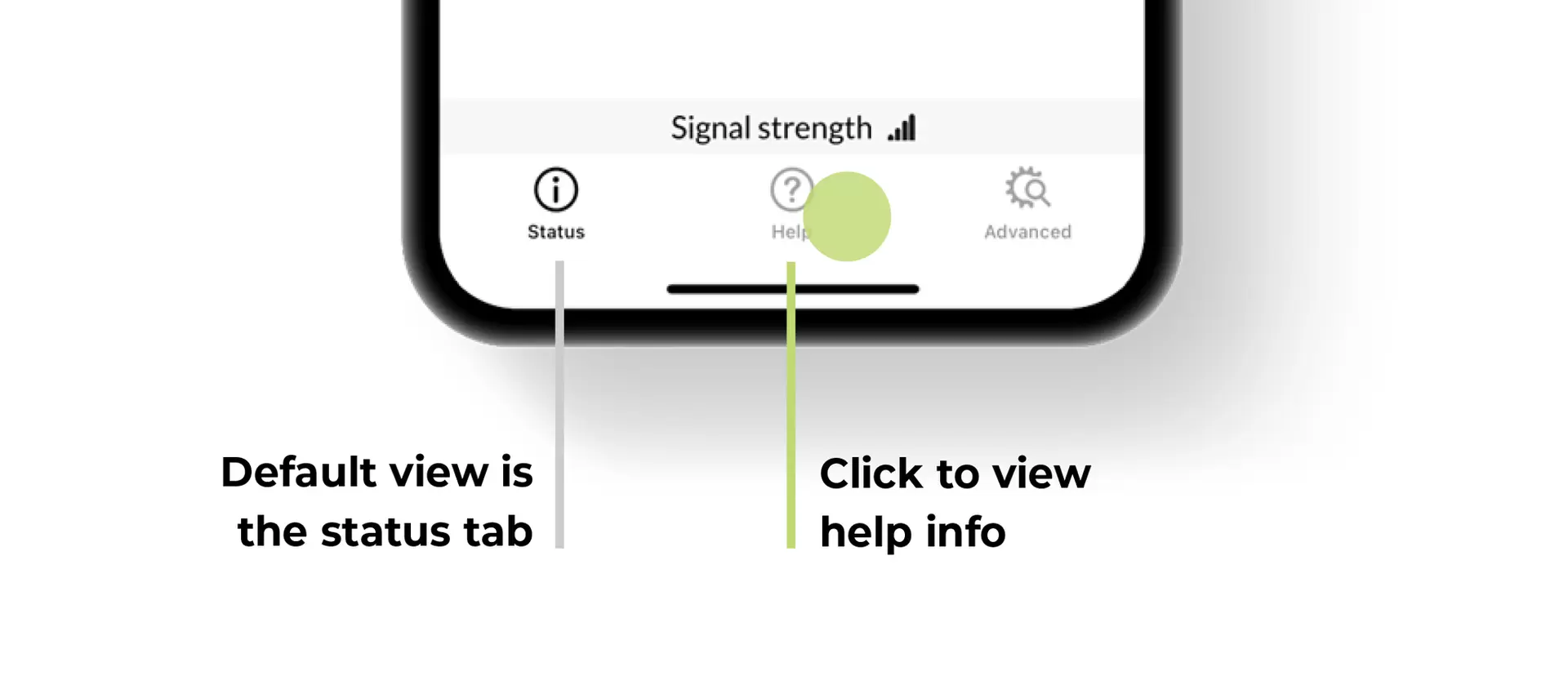
Step two: Tap “help” to view help info.
Here you can see generic help content for every LCi Gateway
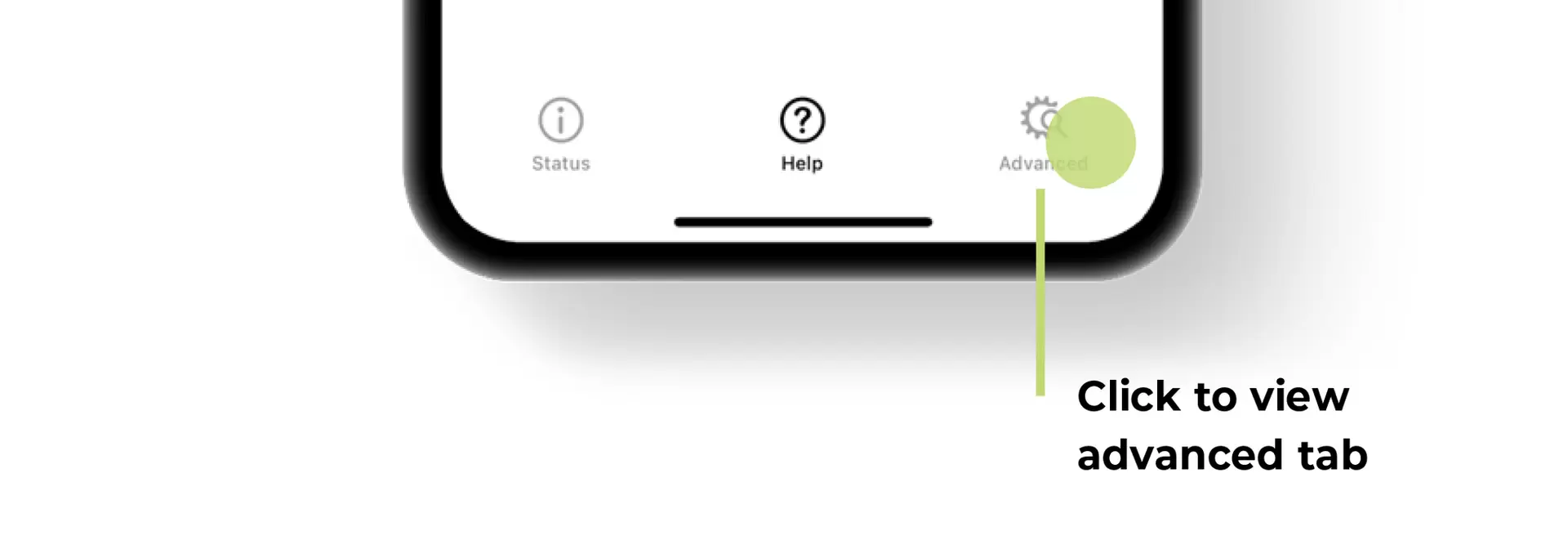
Step three: Tap “advanced” to view the advanced tab
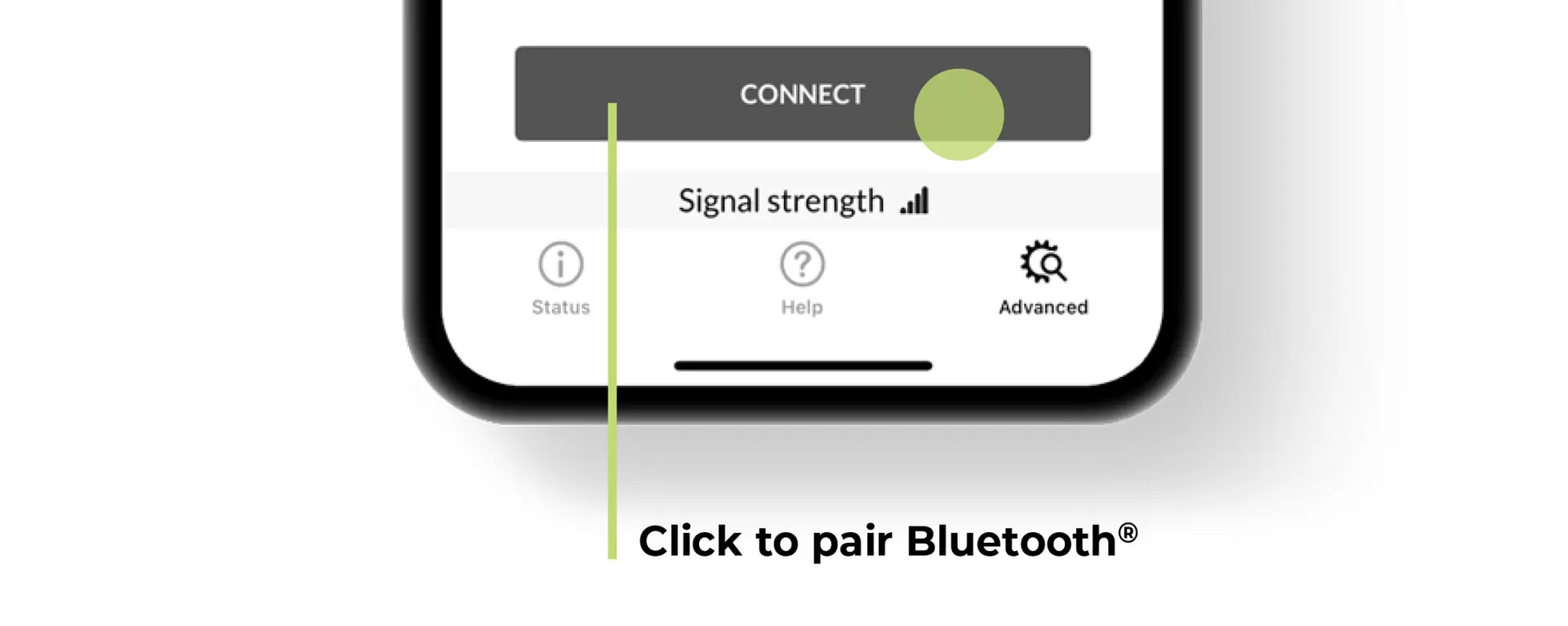
Step four: Tap “CONNECT” to pair Bluetooth®
This allows the OneConnect app to connect to the LCi Gateway and send / receive configuration settings.
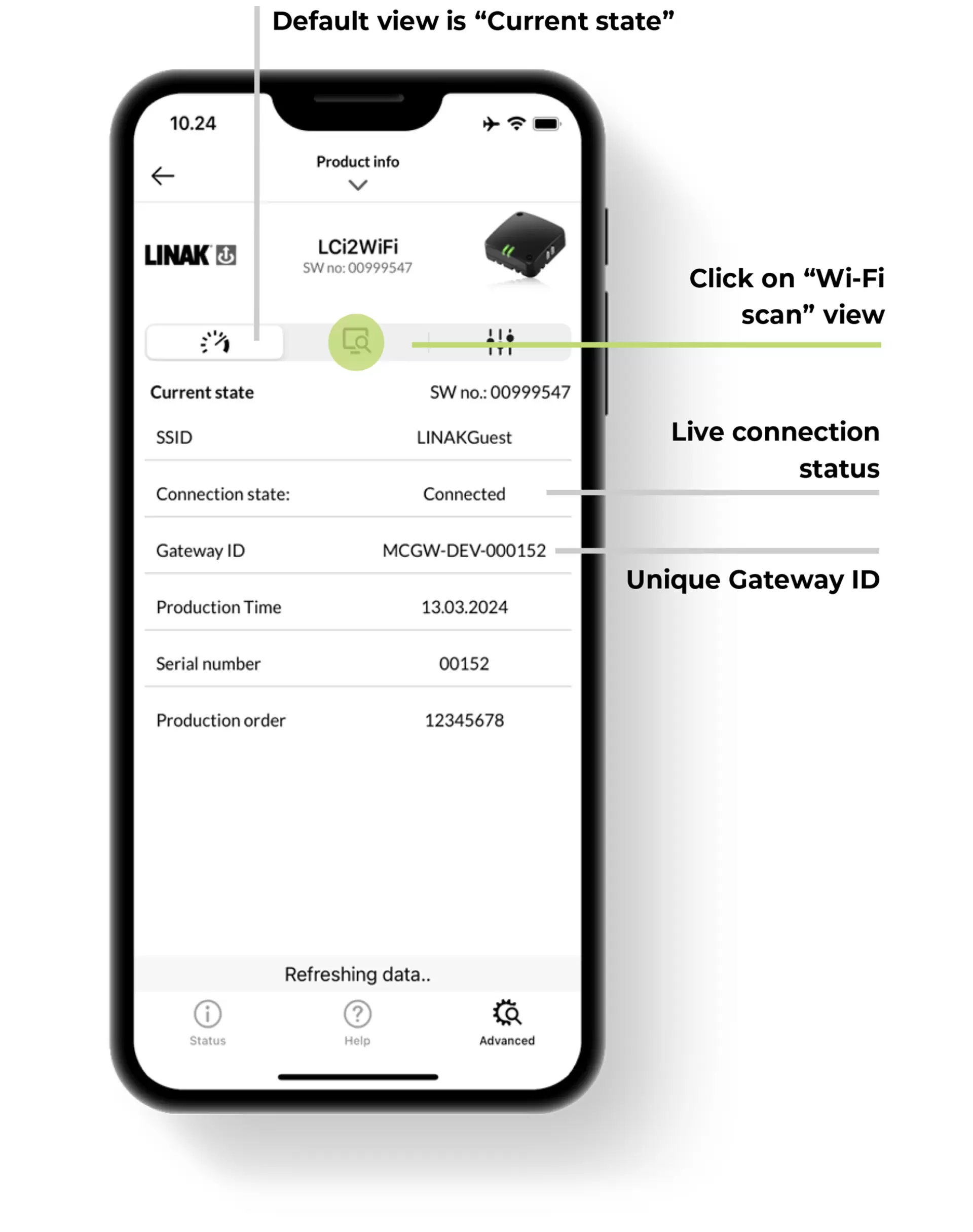
Step five: Tap the centre “Wi-Fi scan” icon
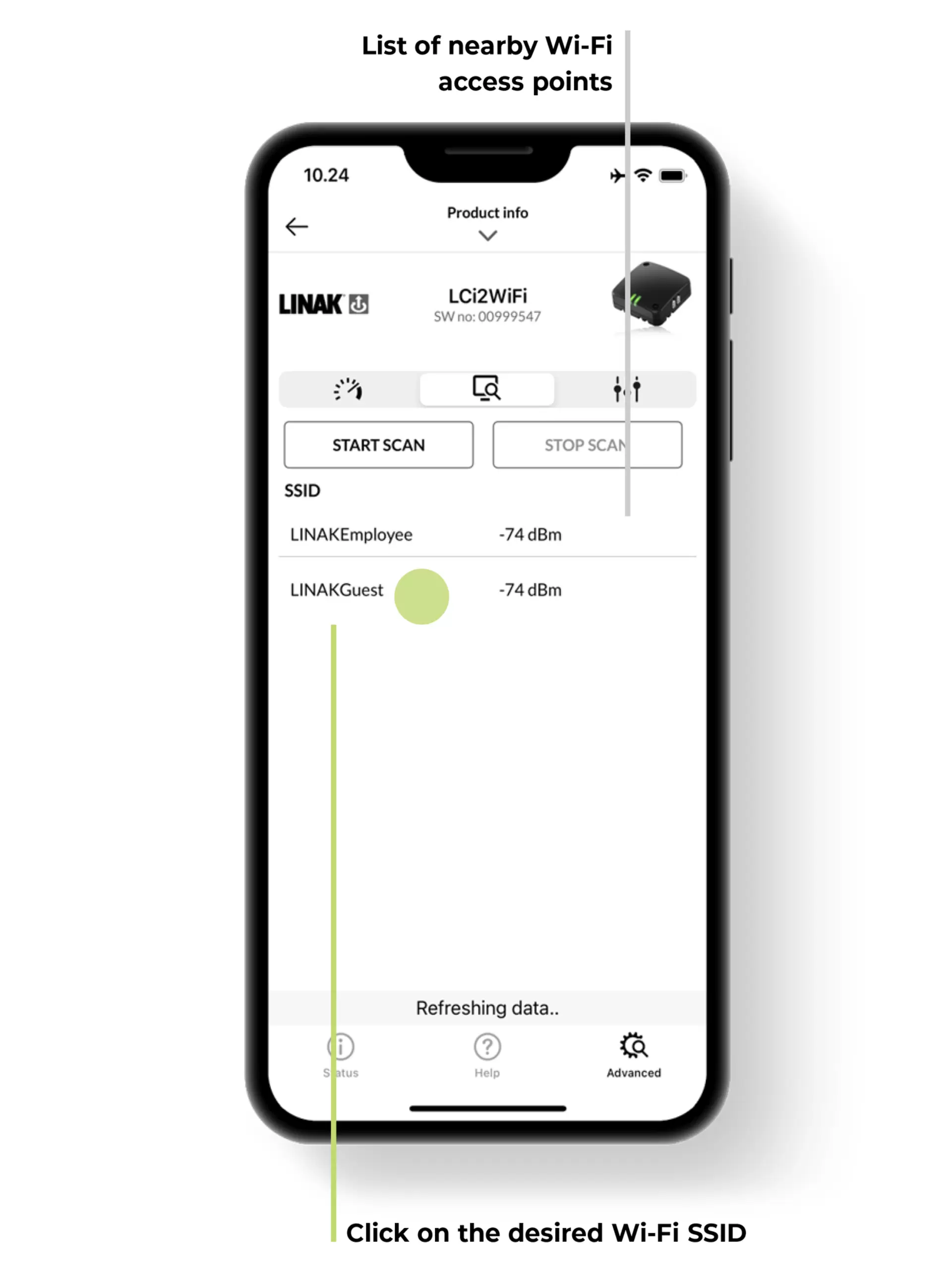
Step six: Tap on the desired Wi-Fi SSID
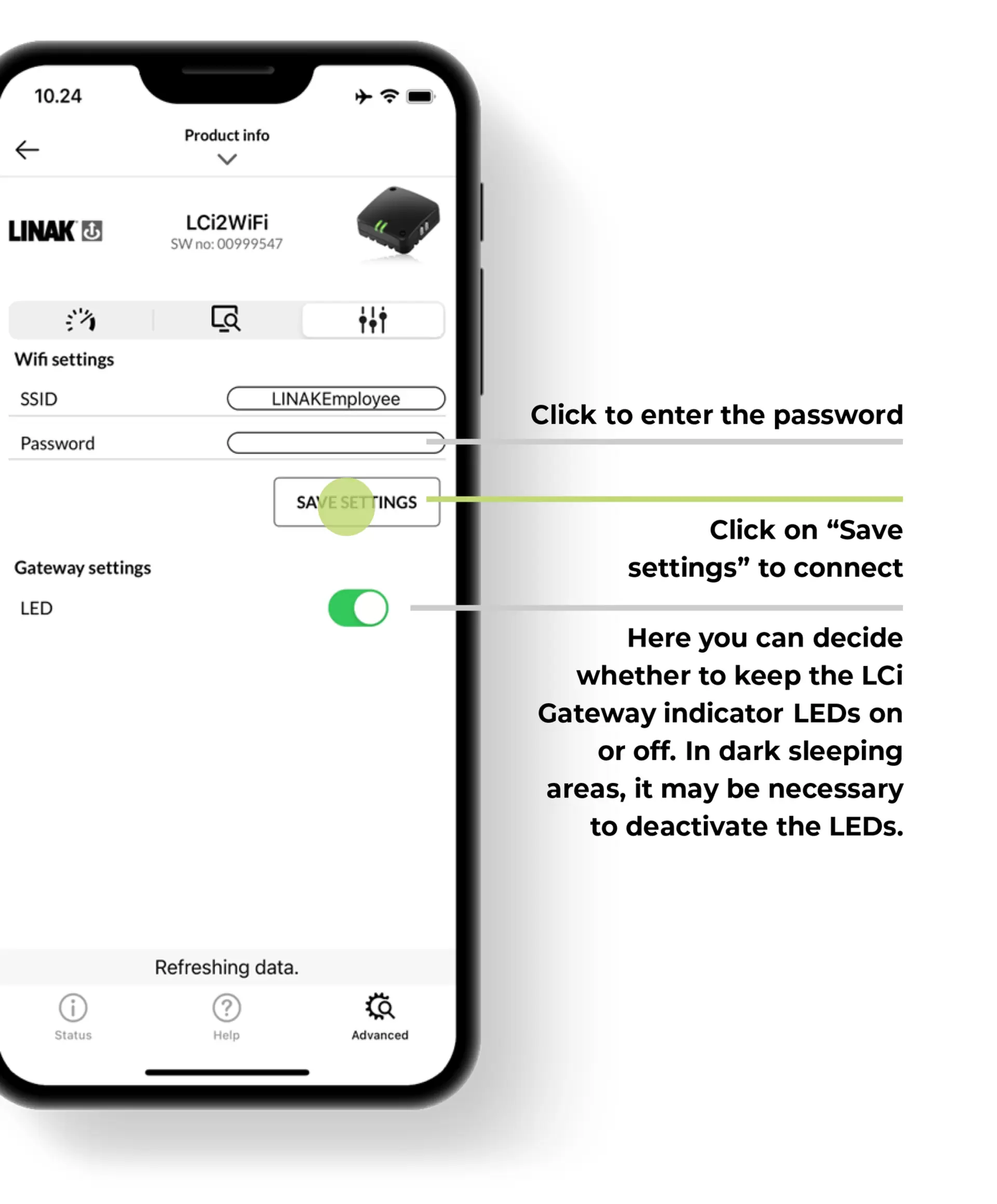
Step seven: Enter the Wi-Fi password and tap the “save settings” button to connect
Step eight: Pairing should be complete. You can refer to the below LED overview to confirm the LCi gateway is now cloud connected and ready to transmit
Questions and answers
Question: Can I control a LINAK system using the app?
Answer: To minimize risk in medical applications, it was decided that the OneConnect app should not be able to control actuator movement.
Question: What about GDPR? Does the app collect data about the user?
Answer: No, this app does not collect, store, or share any user-related data. Therefore, GDPR does not have to be considered when using this app.
Question: Can I reset service counters using this app?
Answer: No, that is not possible with this version. For now, this reset feature is only available in SDT.
Question: Can the app also show actuator systems from manufacturers other than LINAK?
Answer: No, this app only supports LINAK MEDLINE & CARELINE Bluetooth® Low Energy systems.
Question: Does the app also show other LINAK Bluetooth Low Energy systems such as the DPGs from DESKLINE?
Answer: No, this is an app dedicated for use with MEDLINE & CARELINE systems.
Question: Do we offer Software Development Kits (SDK) (like DESKLINE/HOMELINE) to customers who wish to make the app a brand label?
Answer: No.
Question: I have a CO71 with Bluetooth Low Energy in the field. Will this control box work with the app?
Answer: Depending on how new the CO71 software is, Bluetooth may or may not be enabled for your control box. As of Summer 2022, all new LINAK medical control box software has Bluetooth enabled by default (but not Bluetooth controls).
Question: I have a CO71 with Bluetooth Low Energy in the field. What does it take to upgrade these systems to work with the app?
Answer: Reach out to your local LINAK contact for more information on updating these control boxes if they are not already visible in the OneConnect app.
Question: How can I tell (for example read on the product label) if a specific control box supports OneConnect?
Answer: You cannot. It is not possible to see or read on the control box if system status is supported or not. However, the presence of a “Works with OneConnect” sticker on the application can be a good clue that the control box has Bluetooth Low Energy enabled.
Question: Can I choose the icons and images in the app?
Answer: App Content Managers can edit the graphics for both the company logo and application image that is displayed in the app.
Question: Where can I find the privacy policy?
Answer: https://www.linak.com/privacy-policy/
Question: How can I see what has caused a system error?
Answer: You will need access to an Advanced App User account to connect to a control box and view details on a system error. If you don’t have this role, you can still let a remote user with this role assist you via Remote Access.
Question: Why does LIFT40+ with Bluetooth® Low Energy not support system status advertisements?
Answer: This is due to a LIFT40+ hardware limitation.
Question: Will the app run on a tablet/iPad?
Answer: The app is designed and developed for use with smartphones. It works well with some tablets and iPads, but the majority of testing has been performed on smartphones. iPads, by default, will magnify the app, while androids will try to adjust the UI to a larger screen (usually this works fairly well).
Question: Which versions of Android and iOS will the app be compatible with?
Answer: Android 7.XX and newer, iOS 13.XX and newer. It might be compatible with older versions, but this is not guaranteed.
Question: Can I arrange the app to be downloaded from my company account in the App Store and Google Play?
Answer: That is not possible. OneConnect by LINAK is a LINAK app, only available from the LINAK App Store and Google Play accounts. OneConnect was designed with greyscale color and minimal LINAK branding so that our customers can make the app feel like theirs via customizations in the portal.
Question: Why does the app require me to enable location sharing services (Android), if the app is not using it for anything?
Answer: This is dictated by Google and was added to Android 6.0 Marshmallow (and newer).
While it doesn’t currently, the app may use location in the future to provide better information to users.
Question: I have found a bug in the app or portal. How do I report it?
Answer: Please reach out to your local LINAK contact with any bugs you’ve noticed or any feature requests.
The Bluetooth® word mark and logos are registered trademarks owned by Bluetooth SIG Inc. and any use of such marks and logos by LINAK® is under license.